GPT Image 2Prompt AI
PPT Slide Rebuild Side-by-Side Comparison — Sora 2 Prompt
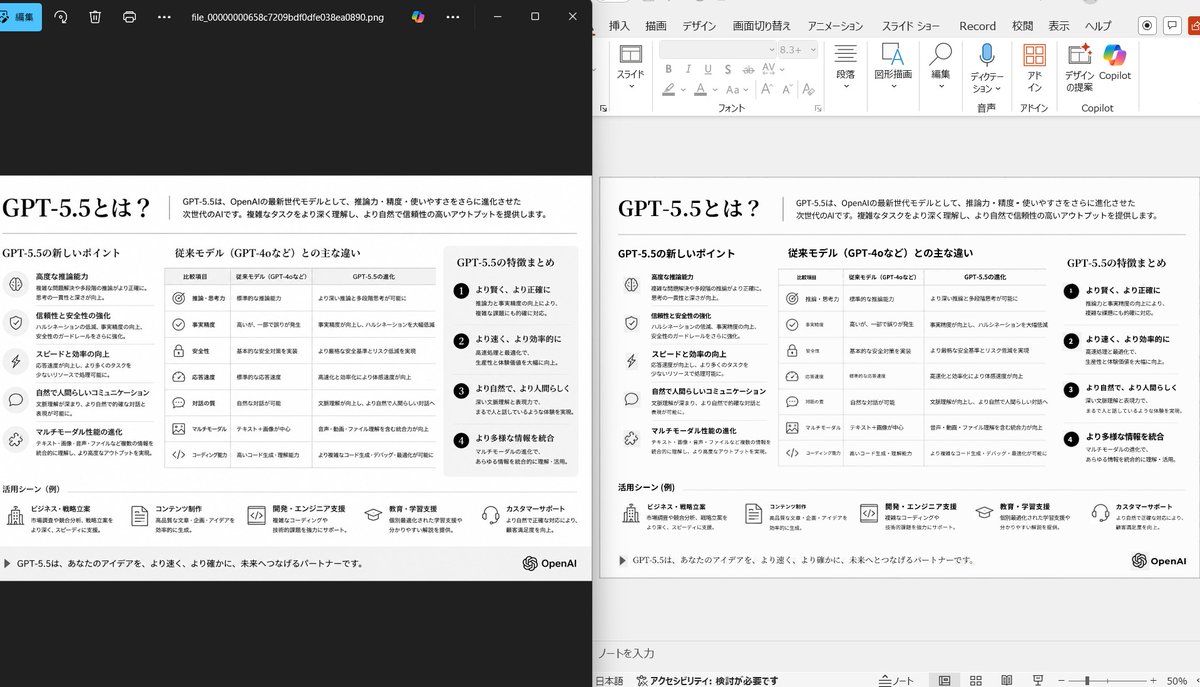
Generate a polished side-by-side desktop screenshot showing a messy reference slide cleaned up into a professional PowerPoint infographic.
PROMPT · EN
使用提供的 PowerPoint 幻灯片截图作为参考图像,将其重构为一张清晰、精美的幻灯片转换结果,并以桌面并排对比的形式呈现。保持原有的日文幻灯片主题和整体布局,但删除参考图中密集的选择框、编辑框以及变形的矢量伪影,使幻灯片看起来像经过专业重构一样。显示 2 个面板:左侧为显示导出幻灯片图像的深色图片查看器窗口;右侧为在 PowerPoint 编辑视图中打开的同一幻灯片。保留原始的单色信息图风格和日文文本结构,但要确保排版清晰易读,且图标、分隔线和列对齐整齐。将幻灯片保持为单页信息图,包含 5 个主要内容区域:1 行顶部标题/页眉、3 列页面中部对比栏、1 行底部包含 5 个带图标项目的用例行。包含页脚线条,并在右下角添加 OpenAI 徽标。强调这是基于上传图像的忠实 PPT 重构,并呈现出逼真的 Windows 桌面应用程序截图外观。
Informazioni su questo prompt
Generate a polished side-by-side desktop screenshot showing a messy reference slide cleaned up into a professional PowerPoint infographic. Use it as a Concept Art starting point for GPT Image 2: keep the visual structure and style constraints intact, then swap in your own subject, brand, or scene.
Start with small changes to subject, scene, camera, and color, then generate a few variations to compare composition and detail without turning the page copy into keyword stuffing.
Come usare questo prompt
- Copy the full prompt text and paste it into your chosen AI image generator (e.g., Sora 2, DALL·E, Midjourney).
- Select a model that excels at realistic UI mockups and text rendering.
- Optionally tweak details like the number of content areas, language of text, or logo placement to match your needs.
- Upload your own reference slide image if the platform supports image-to-image input.
- Generate the image and review; regenerate or adjust prompts if alignment or text clarity needs improvement.