VRChat Lobby Screenshot — Anime & Meme Crossover Prompt
Create a first-person POV VRChat lobby screenshot blending anime icons and internet memes with customizable avatars and nameplates.
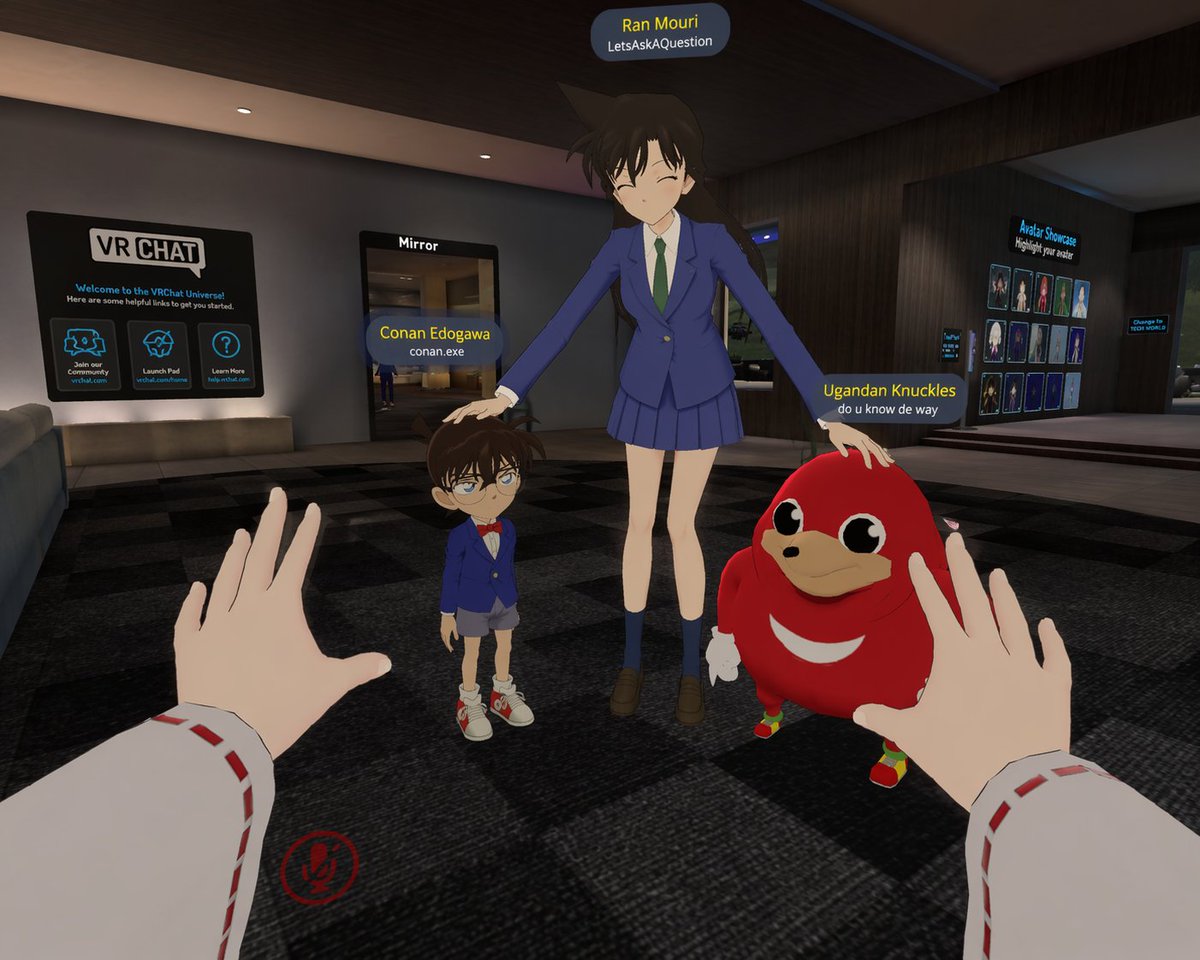
A first-person POV screenshot inside a arggame environment: VRChat lobby featuring a dark checkered floor, a "VR CHAT" welcome sign on the left, a "Mirror" doorway, and an "Avatar Showcase" on the right. The viewer's hands are visible in the foreground, wearing white sleeves with red dashed stitching, reaching forward. A red muted microphone UI icon sits in the bottom left corner. In the center stands argtall character: Ran Mouri from Detective Conan in her blue school uniform, smiling with closed eyes and argaction: patting the heads of the two smaller characters. On her left is argsmall character 1: Conan Edogawa in his blue suit and red bowtie. On her right is argsmall character 2: the Ugandan Knuckles meme character. Each character has a floating nameplate above them: the tall girl's reads "Ran Mouri" in yellow over "LetsAskAQuestion" in white, the boy's reads "Conan Edogawa" over "conan.exe", and the red creature's reads "Ugandan Knuckles" over "do u know de way".
프롬프트 소개
Create a first-person POV VRChat lobby screenshot blending anime icons and internet memes with customizable avatars and nameplates. Use it as a 컨셉 아트 starting point for GPT Image 2: keep the visual structure and style constraints intact, then swap in your own subject, brand, or scene.
Common directions include gptimage2api prompts, gptimage2api, and en. Treat these tags as creative cues; the prompt structure and preview image are the more useful guide.
Start by replacing game environment, tall character, action, and small character 1, then keep the camera, composition, and material cues in the same order. This makes the output easier to compare across variations.
이 프롬프트 사용법
- Copy the full prompt text and open your preferred AI image generation tool. 2. Select a model that excels at stylized or video-game-style imagery (e.g., Sora, Midjourney, or DALL·E). 3. Customize the {game environment}, {tall character}, {small character 1}, {small character 2}, and {action} variables with your own characters or scenes. 4. Run the prompt and review the generated screenshot. 5. Iterate by adjusting character descriptions or actions until the composition matches your vision.