GPT Image 2AI-Prompt
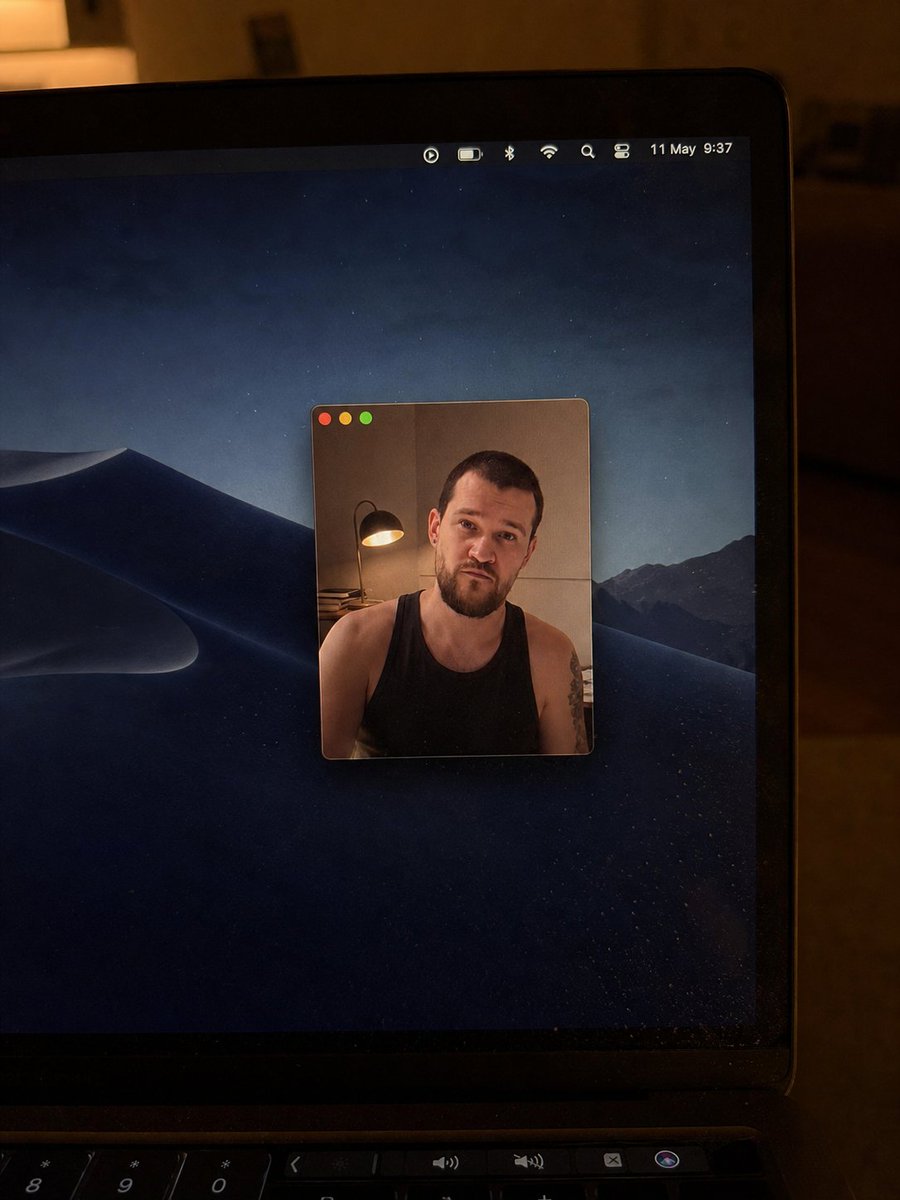
Realistic MacBook Video Call Screenshot — Sora 2 Prompt
Generate a hyper-realistic, low-light photo of a MacBook showing a video call with a censored face, perfect for tech mockups or social media posts.
PROMPT · EN
创建一张逼真的手持智能手机拍摄照片,画面中是一台在昏暗、温暖的室内夜晚打开的 argdevice: MacBook 笔记本电脑。镜头从右上方近距离拍摄,露出黑色边框、屏幕右侧边缘以及部分键盘/触控栏。屏幕显示深色的 macOS 沙丘夜景壁纸,背景为山脉和星光熠熠的蓝黑色天空。屏幕中央有一个小型悬浮视频通话/照片窗口,带有圆角和细边框;窗口左上角有三个 macOS 标志性的红、黄、绿交通灯按钮。窗口内坐着一名成年男子,身穿 argshirt color: 黑色 背心,露出肩膀和手臂上的纹身;他身后左侧有一盏温暖的台灯,背景为米色墙壁;他的脸部被一个 argcensor color: 中等棕色肤色 的方形像素马赛克遮挡。在笔记本电脑屏幕右上角的菜单栏中,包含七个小型状态图标:一个圆形播放图标、电池图标、蓝牙图标、Wi-Fi 图标、放大镜搜索图标、控制中心风格的切换图标,以及日期/时间文本 argdate and time text: 5 月 11 日 9:37。照片应呈现出不完美且真实的质感,带有轻微的屏幕反光、灰尘颗粒、低光噪点、边框上的暖色环境反射、浅景深,避免过于精致的摄影棚效果。
Über diesen Prompt
Generate a hyper-realistic, low-light photo of a MacBook showing a video call with a censored face, perfect for tech mockups or social media posts. Use it as a Konzeptkunst starting point for GPT Image 2: keep the visual structure and style constraints intact, then swap in your own subject, brand, or scene.
Start by replacing device, shirt color, censor color, and date and time text, then keep the camera, composition, and material cues in the same order. This makes the output easier to compare across variations.
So verwendest du diesen Prompt
- Copy the full prompt text from this page.
- Select a compatible AI image generator like Sora 2.
- Edit the bracketed variables (device, shirt color, censor color, date/time) to match your desired scene.
- Paste the customized prompt into the model's input field.
- Generate the image and review the output for realism.