GPT Image 2AI-Prompt
Drop Anyone into Shibuya Crossing — Sora 2 Prompt
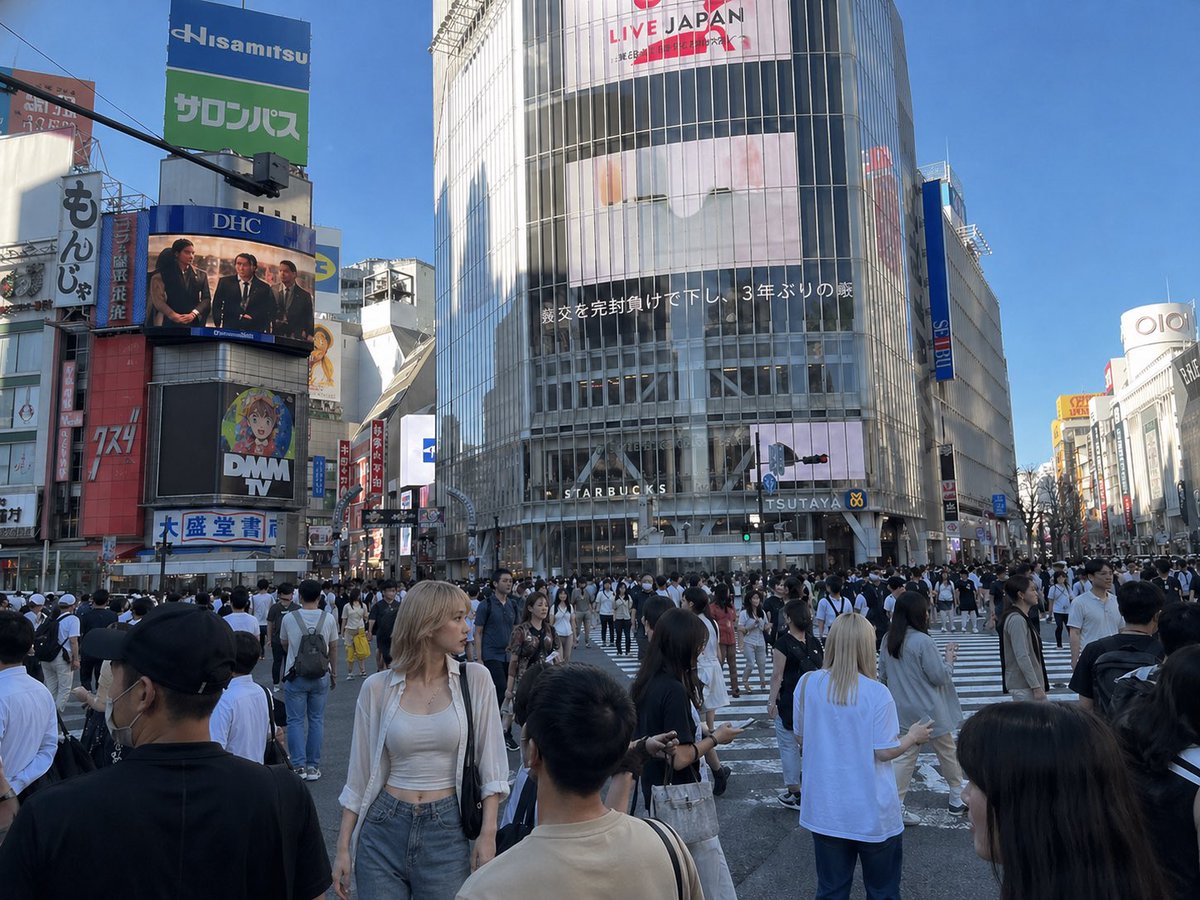
Seamlessly blend any reference person into a busy Shibuya crossing photo with perfect lighting, shadow, and perspective matching for natural, photorealistic results.
PROMPT · EN
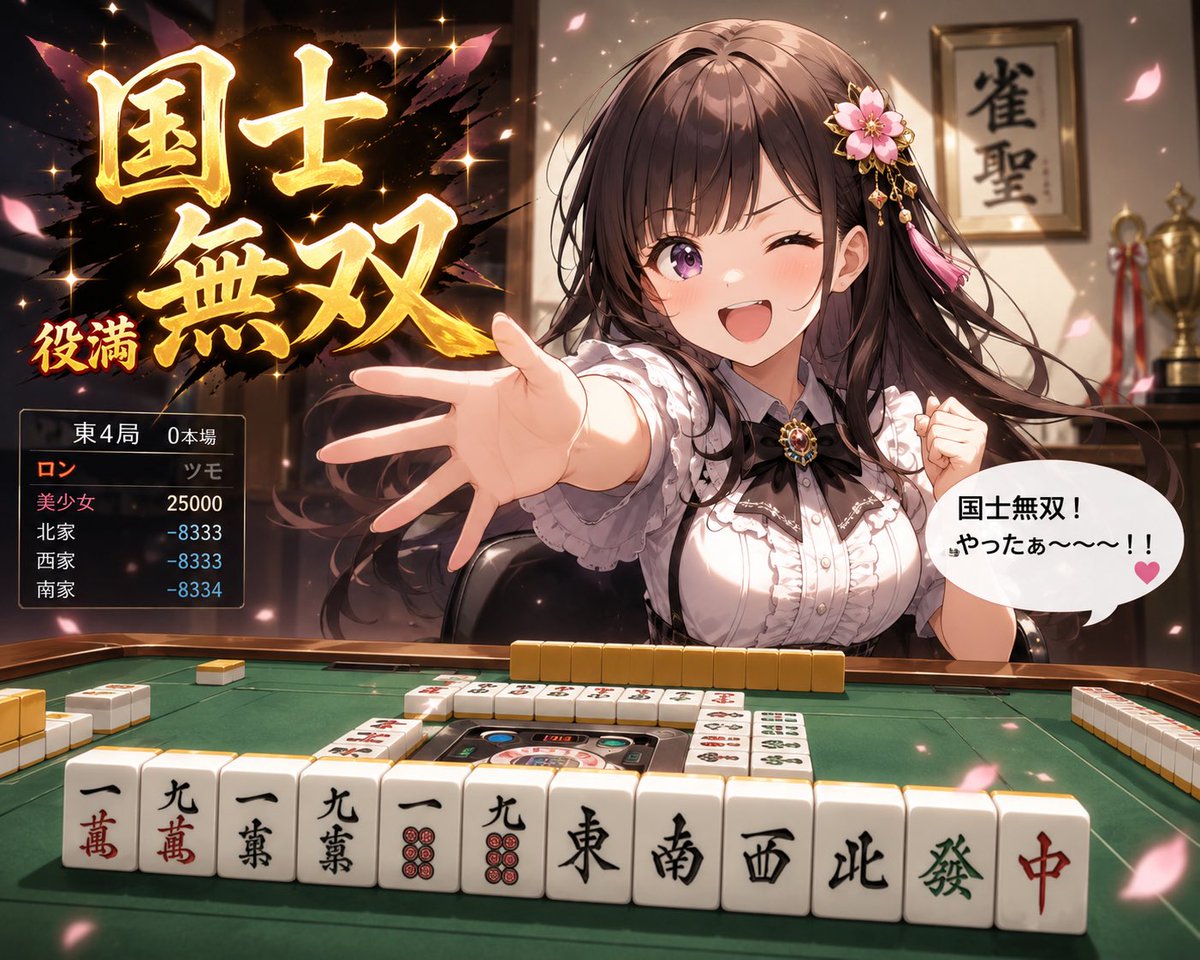
以 REFERENCE_1 作为基础场景,将 REFERENCE_0 中的女性自然地插入到涩谷十字路口繁忙的人群中,使其成为一名照片级逼真的路人。匹配 REFERENCE_1 的光影、透视、镜头感、比例及街拍真实感,并保持其服装、包袋和整体外观与 REFERENCE_0 一致。将她放置在前景偏左的位置,置身于行人之中,身体微向左侧,姿态自然放松,仿佛她原本就在那里拍摄的一样。通过逼真的阴影、色彩匹配、边缘融合以及部分人群遮挡处理,使她与环境完美融合,避免产生“抠图感”。保留 REFERENCE_1 中现有的城市背景、标志牌及人群构图。
Über diesen Prompt
Seamlessly blend any reference person into a busy Shibuya crossing photo with perfect lighting, shadow, and perspective matching for natural, photorealistic results. Use it as a Konzeptkunst starting point for GPT Image 2: keep the visual structure and style constraints intact, then swap in your own subject, brand, or scene.
Start with small changes to subject, scene, camera, and color, then generate a few variations to compare composition and detail without turning the page copy into keyword stuffing.
So verwendest du diesen Prompt
- Copy the prompt text.
- Open your preferred AI image generation or editing tool that supports reference inputs (e.g., Sora 2).
- Upload REFERENCE_0 (the person you want to insert) and REFERENCE_1 (a Shibuya crossing background).
- Paste the prompt and adjust any supported variables like position or blending strength if needed.
- Generate the image and download your naturally composited result.