GPT Image 2Prompt IA
Cyberpunk Neon HUD — M5Stack Usage Dashboard Prompt
Turns a basic usage gauge into a polished neon-green cyberpunk terminal dashboard for tiny 320×240 embedded displays.
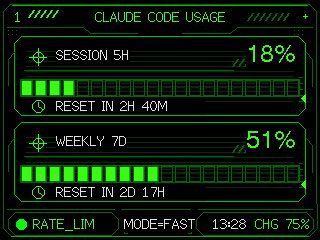
PROMPT · EN
Using the provided reference image as the functional UI base, redesign it into a polished neon-green cyberpunk terminal interface suitable for an M5Stack-style 320×240 display. Keep the same two usage meters and overall information hierarchy, but replace the plain black layout with thin glowing vector line art, angular framed panels, pixel/monospace typography, and sci-fi HUD decorations. Convert the two meters into 2 stacked framed cards: 1) “SESSION 5H” with a crosshair icon, large percentage “argsession percent: 18%”, a segmented horizontal progress bar, and a clock/reset row reading “argsession reset text: RESET IN 2H 40M”; 2) “WEEKLY 7D” with a crosshair icon, large percentage “argweekly percent: 51%”, a segmented horizontal progress bar, and a clock/reset row reading “argweekly reset text: RESET IN 2D 17H”. Add a top header reading “argheader text: CLAUDE CODE USAGE” centered, with decorative diagonal tick marks on both sides and a small plus sign at the top right. Add a bottom status bar with exactly 5 visible items: a green status dot, “RATE_LIM”, “MODE=FAST”, “13:28”, and “CHG 75%”. Use only black background, bright green strokes, darker green grid/bar outlines, and crisp pixel-perfect rendering; make the final image look like a refined embedded-device dashboard rather than a flat mockup.
À propos de ce prompt
Turns a basic usage gauge into a polished neon-green cyberpunk terminal dashboard for tiny 320×240 embedded displays. Use it as a Art Conceptuel starting point for GPT Image 2: keep the visual structure and style constraints intact, then swap in your own subject, brand, or scene.
Start by replacing session percent, session reset text, weekly percent, and weekly reset text, then keep the camera, composition, and material cues in the same order. This makes the output easier to compare across variations.
Comment utiliser ce prompt
- Copy the full prompt above into your preferred AI image generator.
- Choose a model that supports detailed vector-style rendering (e.g., Sora 2, DALL·E 3).
- Adjust the template variables (
session percent,weekly percent, reset times, header text) to match your own data. - Submit the prompt and review the generated dashboard image.
- Iterate by tweaking colors or layout keywords until the HUD looks pixel-perfect on your target device.