GPT Image 2Prompt IA
Retro-Futuristic M5Stack HUD — Claude Code Usage Dashboard Prompt
Generates a polished monochrome green terminal HUD with chunky pixelated gauges, sci-fi frame, and CRT glow — perfect for cyberpunk M5Stack dashboards.
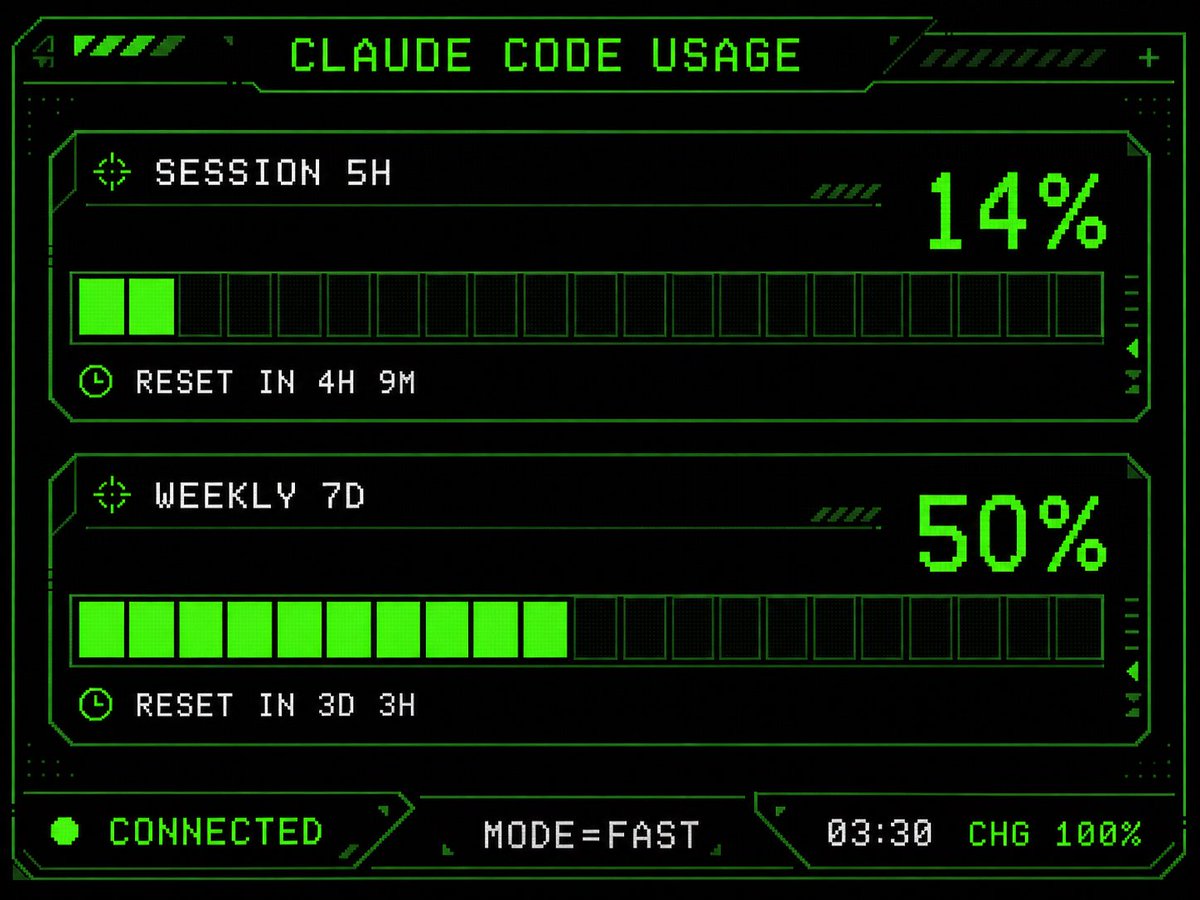
PROMPT · EN
Using the provided reference image as the UI/data source, redesign it into a polished retro-futuristic monochrome green terminal HUD for an M5Stack-style display. Keep the same information and values unchanged: title argtitle text: CLAUDE CODE USAGE, two usage sections labeled argsession label: SESSION 5H and argweekly label: WEEKLY 7D, percentages 14% and 50%, reset messages "RESET IN 4H 9M" and "RESET IN 3D 3H", and footer statuses "CONNECTED", "MODE=FAST", "03:30", "CHG 100%". Replace the plain bars with chunky pixelated segmented gauges: exactly 2 horizontal gauge panels, each with 20 rectangular segments, with the first showing 2 filled neon-green segments and the second showing 10 filled neon-green segments. Add a detailed sci-fi frame with angular borders, thin circuit-like linework, corner brackets, dotted texture, small arrow/target/clock icons, diagonal hazard stripes, and subtle CRT/pixel-grid glow. Use a black background, bright neon green outlines and fills, and white-green pixel text. Arrange the footer as exactly 3 bottom modules: left "CONNECTED" with a green status dot, center "MODE=FAST", and right "03:30 CHG 100%". Make it sharper, more stylish, and more production-ready than the reference while preserving the same dashboard function and data.
À propos de ce prompt
Generates a polished monochrome green terminal HUD with chunky pixelated gauges, sci-fi frame, and CRT glow — perfect for cyberpunk M5Stack dashboards. Use it as a Art Conceptuel starting point for GPT Image 2: keep the visual structure and style constraints intact, then swap in your own subject, brand, or scene.
Start by replacing title text, session label, and weekly label, then keep the camera, composition, and material cues in the same order. This makes the output easier to compare across variations.
Comment utiliser ce prompt
- Copy the prompt and fill in your preferred title, session label, weekly label, and usage percentages. 2. Choose a model that supports image generation and detail-oriented UI design. 3. Paste the prompt into the model's input field and generate. 4. Review the output and tweak variables like segment counts or color accents if needed. 5. Export the final image for use in your M5Stack project or retro HUD mockup.