GPT Image 2AI 提示词
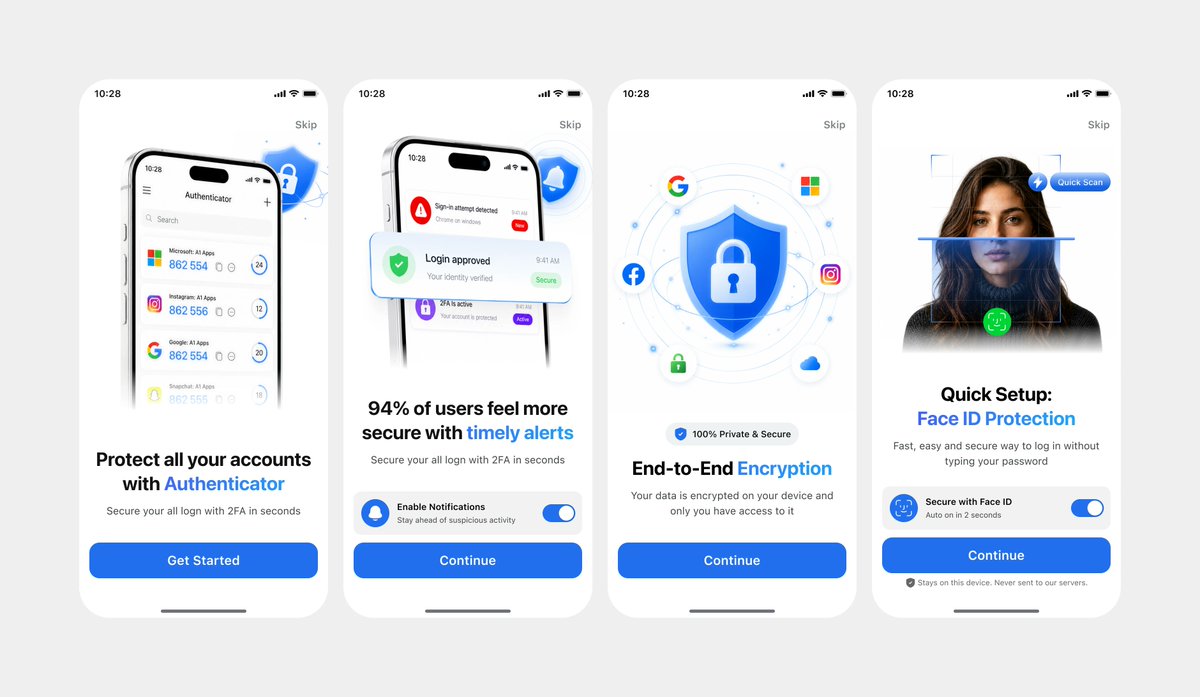
Authenticator Onboarding UI — 4-Screen Clean Model
Generate a polished 4-screen mobile Authenticator onboarding flow with customizable branding, ideal for app demos and design iterations.
提示词 · EN
以 REFERENCE_1 作为主要 UI 参考,仅在需要深色变体细节时使用 REFERENCE_0,将移动端入门引导流程重新创建为简洁的正面设计模型,而非拍摄的笔记本电脑屏幕。提取并拉直四个 iPhone 风格的屏幕,去除所有相机透视、反光、浏览器边框、笔记本电脑边缘及周围环境,并将屏幕均匀地放置在浅灰色画布上。保持原有的白色/浅色主题、圆角手机卡片、蓝色安全品牌标识、排版层级、图标、插图以及 CTA 样式。从左到右精确生成 4 个入门引导屏幕:1) Authenticator 账户列表,标题为“Protect all your accounts with Authenticator”,CTA 为“Get Started”;2) 安全警报通知,标题为“94% of users feel more secure with timely alerts”,CTA 为“Continue”;3) 盾牌/锁加密插图,标题为“End-to-End Encryption”,CTA 为“Continue”;4) Face ID 快速设置,包含人像/扫描图形、标题“Quick Setup: Face ID Protection”、安全的 Face ID 开关卡片、隐私说明及 CTA“Continue”。使用 argprimary color: bright blue 作为主要强调色,保留应用名称为 argapp name: Authenticator,并将状态栏时间保留为 argstatus time: 10:28。使最终效果看起来像精美的 Figma 导出图或产品演示,清晰且高分辨率,不含任何现实照片的瑕疵。
关于这个提示词
Generate a polished 4-screen mobile Authenticator onboarding flow with customizable branding, ideal for app demos and design iterations. 它更适合作为 GPT Image 2 的概念艺术起点:先保留画面结构、主体关系和风格约束,再替换成你的品牌、人物或场景。
使用时优先替换 primary color、app name、status time 等占位符,并保持镜头、构图和材质描述的顺序不变。这样更容易获得稳定的画面结果,也方便继续做多版本对比。
如何使用这个提示词
- Copy the prompt and paste it into an AI model that supports image generation like Sora 2.
- Choose a model version capable of generating high-fidelity UI mockups.
- Adjust the
{primary color}and{app name}variables to match your brand. - Generate the image and download the resulting 4-screen layout.