GPT Image 2AI 提示词
Ancient Stone Wall Street View Monitor – Sora 2 Prompt
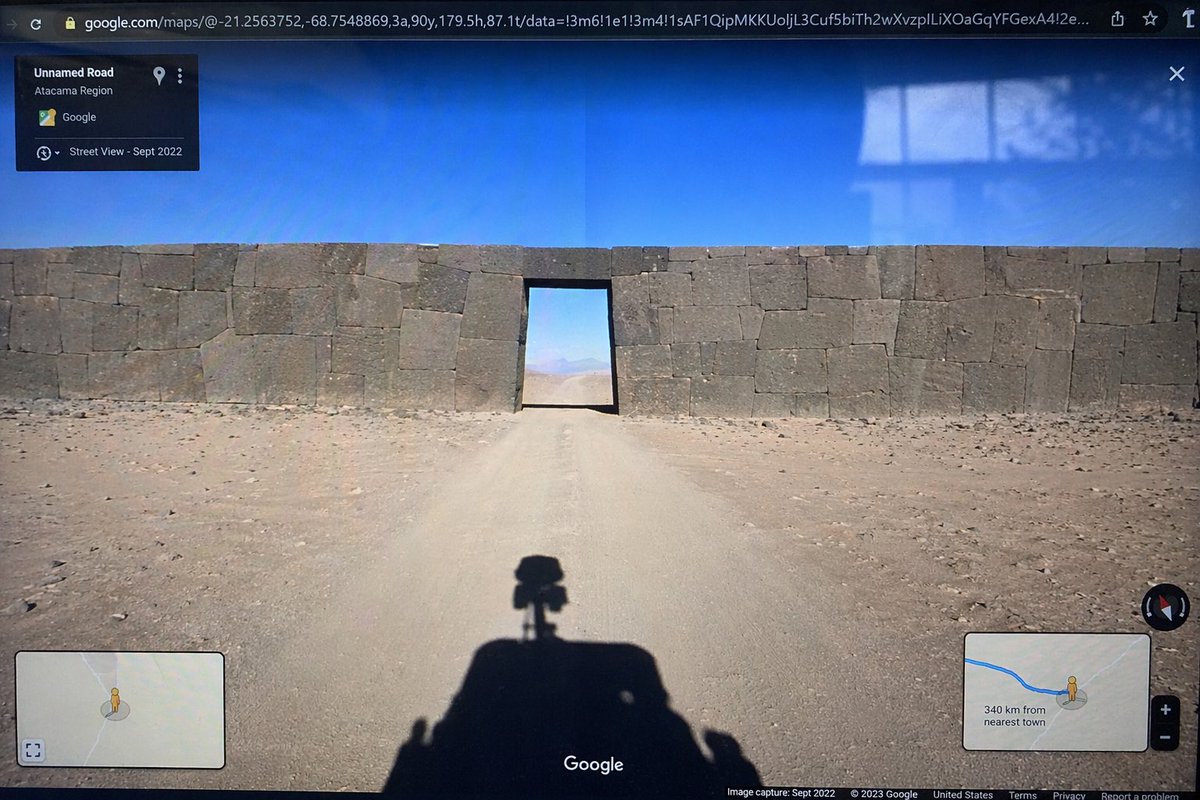
Create a realistic monitor photo of Google Street View displaying an ancient desert stone wall anomaly with UI, perfect for surreal art.
提示词 · EN
type
显示 Google Maps Street View 界面的电脑显示器照片scene
environment
{argument name="environment" default="晴朗蓝天下的荒凉沙漠景观"}subject
{argument name="subject" default="巨大的古老石墙,带有完美契合的巨石砌筑,阻挡在土路上,中心处开有一个矩形门洞"}foreground
投射在土路上的 Google Street View 车辆阴影,车顶装有 360 度全景摄像头ui_elements
browser_bar
顶部的 URL 栏显示 google.com/maps 以及经纬度坐标top_left_panel
黑色半透明信息框,显示文本“Unnamed Road”、“{argument name="region" default="阿塔卡马地区"}”以及“Street View - 2022 年 9 月”bottom_left_panel
带有黄色 Pegman 图标的迷你地图插图bottom_right_panel
显示蓝色路线、Pegman、缩放控件以及文本“{argument name="distance text" default="距最近城镇 340 公里"}”的迷你地图插图bottom_bar
底部中央的 Google Logo、右侧的指南针图标,以及沿底部的版权/拍摄日期文本style_details
可见的屏幕反光和轻微的显示器畸变,以模拟用智能手机拍摄物理屏幕的效果关于这个提示词
Create a realistic monitor photo of Google Street View displaying an ancient desert stone wall anomaly with UI, perfect for surreal art. 它更适合作为 GPT Image 2 的概念艺术起点:先保留画面结构、主体关系和风格约束,再替换成你的品牌、人物或场景。
这条提示词使用结构化 JSON 组织信息,包含 type、scene、ui elements、style details 等字段。保留这种层级能让模型更清楚地区分画面主题、布局、界面元素和细节约束。
使用时建议先小幅修改主体、场景、镜头和色调,再生成多个版本对比构图与细节。这样页面内容对用户有实际帮助,也避免把模型名或标签机械堆在正文里。
如何使用这个提示词
- Copy the prompt text from the page.
- Paste into your preferred AI image generator (Sora 2, Midjourney, DALL·E 3, etc.).
- Customize the bracketed variables (e.g., environment, region, distance) to match your desired anomaly setting.
- (Optional) Tweak the UI or monitoring details as needed.
- Generate and refine to achieve your perfect eerie screen photo.