GPT Image 2AI 提示词
Japanese Webinar Banner — Bold Diagonal Split & Portrait Prompt
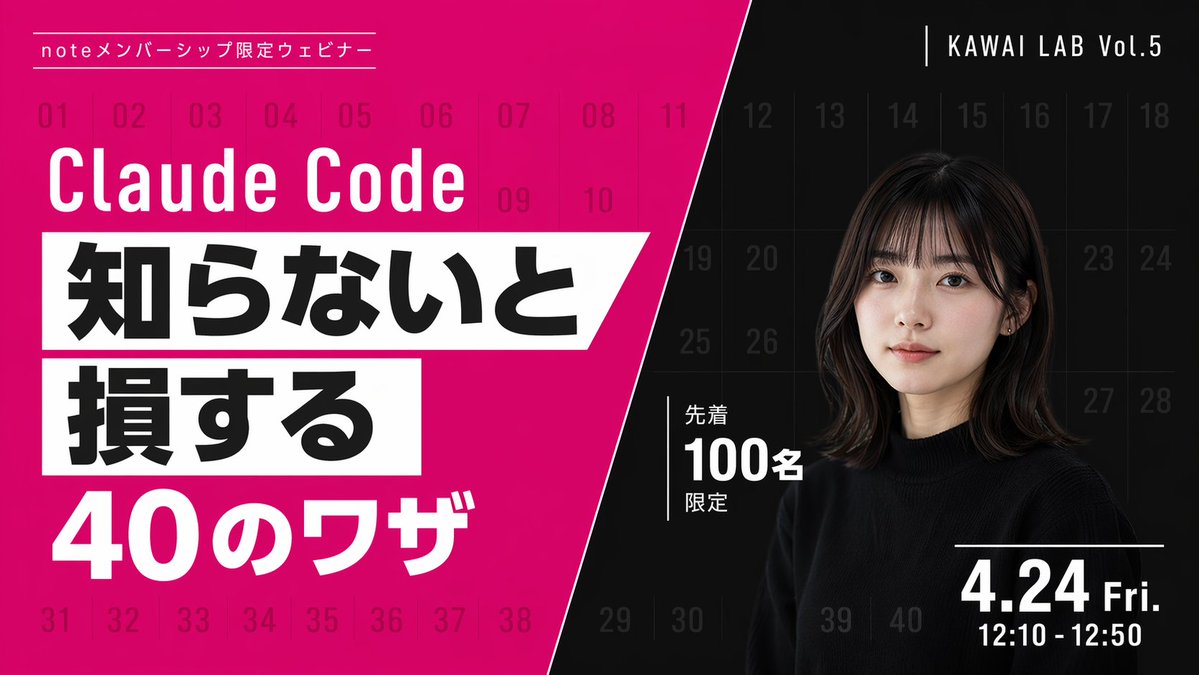
Creates a high-contrast, diagonally split promotional banner with bold typography, magenta accents, and a professional portrait, perfect for webinar announcements and event marketing.
提示词 · EN
type
webinar promotional bannerstyle
modern, bold typography, high contrast, diagonal split layoutbackground
pattern
faint grid of 40 sequential numbers from 01 to 40 spanning the entire canvasleft_color
vibrant magentaright_color
blacksplit_style
sharp diagonal line from top center to bottom leftleft_section
top_label
{argument name="top label" default="noteメンバーシップ限定ウェビナー"}title
{argument name="main title" default="Claude Code"}highlight_box_1
text
{argument name="highlight text 1" default="知らないと"}style
black text on white skewed rectangular backgroundhighlight_box_2
text
{argument name="highlight text 2" default="損する"}style
black text on white skewed rectangular backgroundbottom_text
40のワザright_section
top_right_label
KAWAI LAB Vol.5subject
portrait of a young Japanese woman, shoulder-length dark hair with bangs, wearing a black crew neck sweater, neutral expression, looking at cameramiddle_badge
text
先着 100名 限定style
white text with vertical line accentbottom_right_date
{argument name="date and time" default="4.24 Fri. 12:10 - 12:50"}关于这个提示词
Creates a high-contrast, diagonally split promotional banner with bold typography, magenta accents, and a professional portrait, perfect for webinar announcements and event marketing. 它更适合作为 GPT Image 2 的概念艺术起点:先保留画面结构、主体关系和风格约束,再替换成你的品牌、人物或场景。
这条提示词使用结构化 JSON 组织信息,包含 type、style、background、left section、right section 等字段。保留这种层级能让模型更清楚地区分画面主题、布局、界面元素和细节约束。
使用时建议先小幅修改主体、场景、镜头和色调,再生成多个版本对比构图与细节。这样页面内容对用户有实际帮助,也避免把模型名或标签机械堆在正文里。
如何使用这个提示词
- Copy the entire prompt JSON into your preferred AI image generator that supports structured prompts.
- Select a model known for strong typographic and layout rendering, such as DALL·E 3, Midjourney, or Sora.
- Customize the argument variables—top label, main title, highlight texts, and date—to match your specific webinar details.
- Adjust the portrait description in the
subjectfield to feature your desired speaker or presenter appearance. - Generate the image and iterate on the prompt text or color values until you achieve the desired look.