GPT Image 2AI 提示词
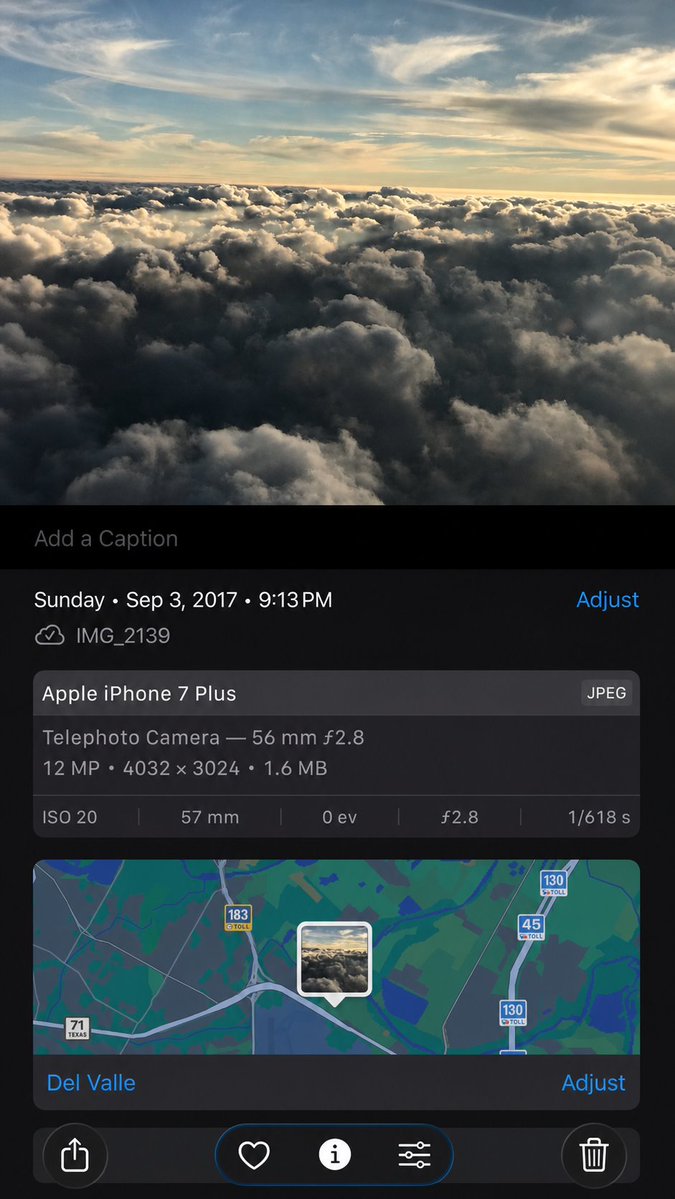
Synthetic iPhone Photos Metadata Screenshot — Sora 2 Prompt
Generate a clean, high-fidelity iOS Photos metadata screen with preserved details, map, and controls — perfect for UI mockups or asset previews.
提示词 · EN
Using the provided iPhone Photos screenshot as the reference, recreate it as a cleaner, high-fidelity synthetic screenshot while preserving the same overall content: the cloud photo, the Photos app metadata panel, the map, date/time, filename, camera details, and bottom controls. Subtly rebuild the cloud image rather than copying it exactly, with a slightly wider-feeling crop, sharper modern rendering, and a more polished dark iOS interface. Keep the visible text and metadata unchanged, including argdate and time: Sunday • Sep 3, 2017 • 9:13 PM, argfilename: IMG_2139, argdevice name: Apple iPhone 7 Plus, arglocation: Del Valle, and argphoto specs: Telephoto Camera — 56 mm ƒ2.8; 12 MP • 4032 × 3024 • 1.6 MB; ISO 20; 57 mm; 0 ev; ƒ2.8; 1/618 s. Include exactly 5 bottom toolbar icons: share, heart, information, adjustment sliders, and trash. Keep the map section with the centered photo-pin thumbnail and the visible road shields 71 Texas, 183 toll, 45 toll, and 130 toll.
关于这个提示词
Generate a clean, high-fidelity iOS Photos metadata screen with preserved details, map, and controls — perfect for UI mockups or asset previews. 它更适合作为 GPT Image 2 的概念艺术起点:先保留画面结构、主体关系和风格约束,再替换成你的品牌、人物或场景。
使用时优先替换 date and time、filename、device name、location 等占位符,并保持镜头、构图和材质描述的顺序不变。这样更容易获得稳定的画面结果,也方便继续做多版本对比。
如何使用这个提示词
- Copy this prompt into Sora 2 or a compatible image generator.
- Enter your preferred date/time, filename, device name, location, and photo specs using the provided arguments.
- Adjust any other details if needed (e.g. map area, lighting).
- Run the generation and select the best output.
- Use the result for UI demos, portfolio pieces, or creative projects.