Brainrot Lecture Hall Projector — Split Screen Gaming & Math Class
Create a realistic photo of a college projector screen combining an infinite geometric series lecture with flanking Subway Surfers and Minecraft parkour videos.
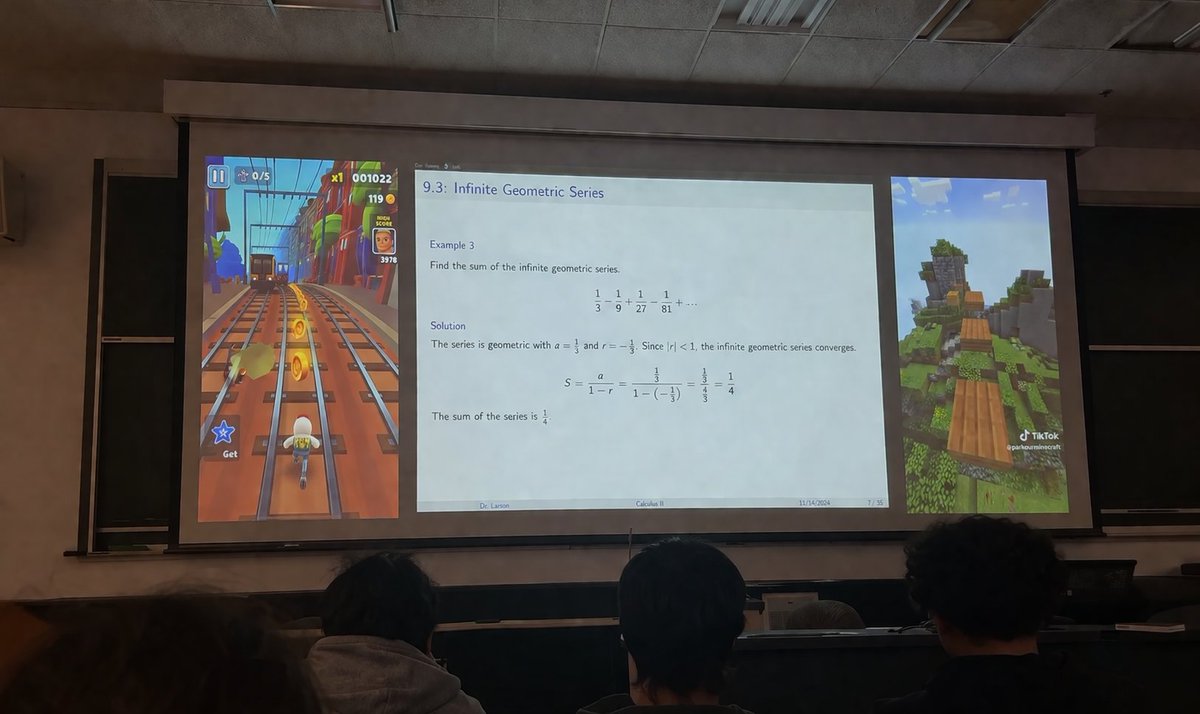
A realistic photograph taken from the audience in a dimly lit university lecture hall, looking over the backs of the heads of three students in the foreground towards a large projector screen. The projector screen displays a layout split into three distinct vertical panels. The left panel shows vertical argleft game: Subway Surfers gameplay, featuring a character running on train tracks collecting gold coins with UI elements like a score of "001022". The wide center panel displays an academic presentation slide titled "argslide topic: 9.3: Infinite Geometric Series". The slide contains math text: "Example 3: Find the sum of the infinite geometric series. 1/3 - 1/9 + 1/27 - 1/81 + ... Solution: The series is geometric with a = 1/3 and r = -1/3. Since |r| < 1, the infinite geometric series converges. S = a / (1 - r) = (1/3) / (1 - (-1/3)) = (1/3) / (4/3) = 1/4. The sum of the series is 1/4." The slide footer reads "argprofessor name: Dr. Larson", "argcourse name: Calculus II", "11/14/2024", and "7 / 35". The right panel shows vertical argright game: Minecraft parkour gameplay, featuring floating wooden blocks over a grassy landscape with a TikTok watermark at the bottom right. The room has a drop ceiling and blackboards visible behind the screen edges.
About this prompt
Create a realistic photo of a college projector screen combining an infinite geometric series lecture with flanking Subway Surfers and Minecraft parkour videos. Use it as a Concept Art starting point for GPT Image 2: keep the visual structure and style constraints intact, then swap in your own subject, brand, or scene.
Common directions include gptimage2api prompts, gptimage2api, and en. Treat these tags as creative cues; the prompt structure and preview image are the more useful guide.
Start by replacing left game, slide topic, professor name, and course name, then keep the camera, composition, and material cues in the same order. This makes the output easier to compare across variations.
How to use this prompt
- Copy the entire prompt template, including the {argument} tags, into your Sora 2 prompt field.
- Select your preferred video generation model (e.g., Sora 2 or similar text-to-video AI).
- Customize the variables: change "left game", "right game", "slide topic", "professor name", or "course name" to fit your scene.
- Adjust any style or resolution settings in your chosen platform, then generate the video.
- Review the output and tweak variables or regenerate if the layout or details need refinement.