Sora2 Hub
Sora2 Hub
  • Prompt Library
  • Pricing
  • Showcase
  • Blog
Sora2 Hub
Sora2 Hub
Sora2 Hub

Sora2 Hub

Professional AI creation platform powered by Sora 2, Veo 3.1, and Nano Banana Pro. Create stunning videos and studio-grade images with advanced control, HD quality, and no watermarks.

Email:support@sora2hub.org

AI Video Generator

  • Text to Video
  • Image to Video
  • Veo 3.1
  • Sora 2
  • Kling 3.0
  • Kling 2.6
  • Kling 2.5
  • Runway
  • Wan 2.6
  • Seedance 2.0
  • Hailuo 2.3
  • Grok Imagine
  • HappyHorse-1.0
  • HappyHorse 1.1
  • Kling 3.0 Turbo
  • Volcengine Video-to-Video Lip Sync
  • OmniHuman 1.5
  • Grok Imagine Video 1.5
  • Gemini Omni
  • Wan 2.7 Video
  • Seedance 2.0 Mini

AI Image Generator

  • Text to Image
  • Image to Image
  • Nano Banana Pro
  • Nano Banana
  • 4o Image
  • Flux Kontext
  • Z Image
  • Seedream 4.5
  • Seedream 5.0 Lite
  • Nano Banana 2
  • GPT Image 2
  • AI Image Upscaler
  • Seedream 5.0 Pro
  • Nano Banana 2 Lite
  • Qwen Image 2.0

AI Effects

  • AI Age Filter
  • AI Gender Swap
  • AI Kiss
  • AI Hug
  • Ghibli Image
  • AI Mermaid Filter
  • AI Bodyshake
  • Smiling Filter
  • AI Fat
  • Action Figure

Product

  • Features
  • Showcases
  • Pricing

Company

  • About
  • Contact

© 2025 • Sora2 Hub ORG All rights reserved.

  • Privacy Policy
  • Terms of Service
  • Refund Policy
  1. Home
  2. /
  3. Prompts
  4. /
  5. GPT Image 2
  6. /
  7. wikiHow Article Mockup Prompt — Realistic Tutorial Page
GPT Image 2AI Prompt

wikiHow Article Mockup Prompt — Realistic Tutorial Page

Generates a text-heavy, step-by-step tutorial webpage in the classic wikiHow layout, complete with UI mockups.
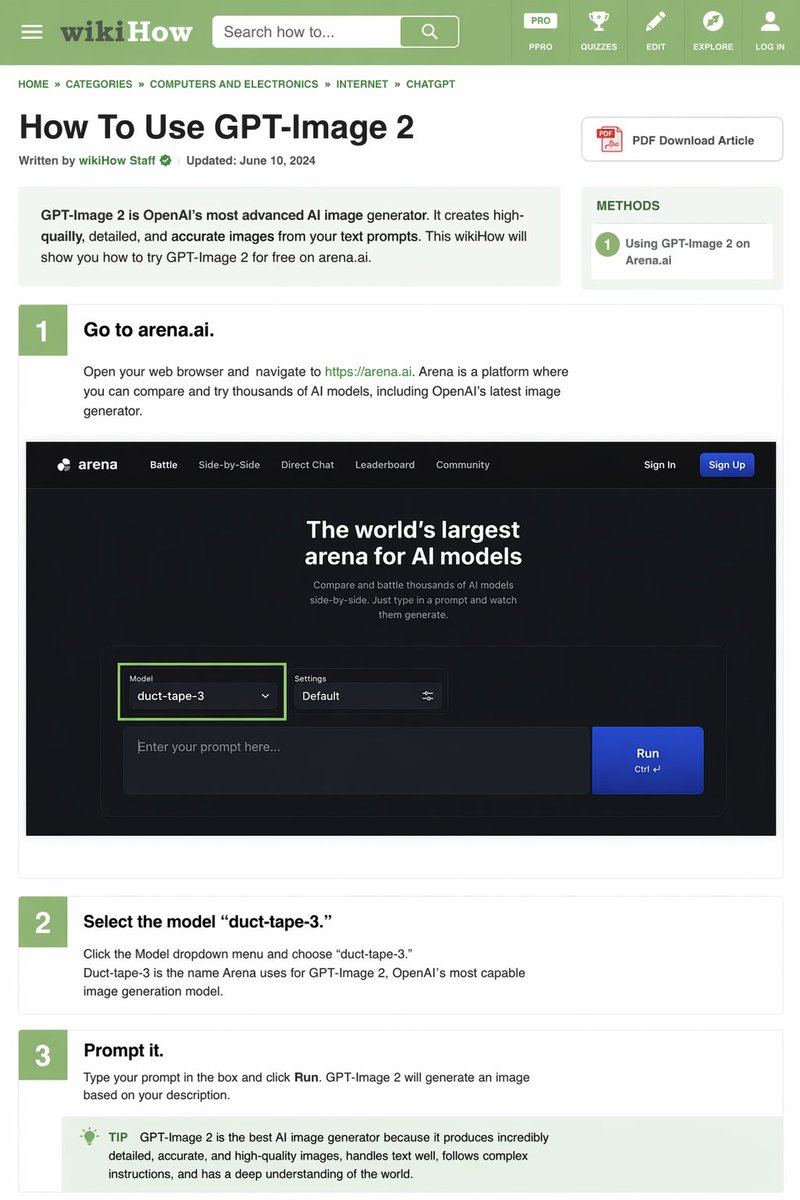
wikiHow Article Mockup Prompt — Realistic Tutorial Page
PROMPT · EN
type
wikiHow article mockup
header
background
green
elements
item 1
hamburger menu icon
item 2
wikiHow logo
item 3
search bar with 'Search how to...' text
item 4
5 navigation icons: PRO/PPRO, QUIZZES, EDIT, EXPLORE, LOG IN
breadcrumbs
HOME » CATEGORIES » COMPUTERS AND ELECTRONICS » INTERNET » CHATGPT
article_info
title
{argument name="article title" default="How To Use GPT-Image 2"}
metadata
Written by wikiHow Staff | Updated: June 10, 2024
sidebar
item 1
PDF Download Article button
item 2
METHODS box: 1 Using GPT-Image 2 on Arena.ai
intro_box
GPT-Image 2 is OpenAI's most advanced AI image generator. It creates high-quailly, detailed, and accurate images from your text prompts. This wikiHow will show you how to try GPT-Image 2 for free on arena.ai.
steps
item 1
number
1
title
{argument name="step 1 title" default="Go to arena.ai."}
description
Open your web browser and navigate to https://arena.ai. Arena is a platform where you can compare and try thousands of AI models, including OpenAI's latest image generator.
embedded_image
type
dark mode website UI mockup
logo
arena
navigation
item 1
Battle
item 2
Side-by-Side
item 3
Direct Chat
item 4
Leaderboard
item 5
Community
item 6
Sign In
item 7
Sign Up button
hero_text
The world's largest arena for AI models
input_ui
model_dropdown
Model: {argument name="model name" default="duct-tape-3"}
settings
Default
text_input
Enter your prompt here...
button
Run
item 2
number
2
title
{argument name="step 2 title" default="Select the model 'duct-tape-3.'"}
description
Click the Model dropdown menu and choose 'duct-tape-3.' Duct-tape-3 is the name Arena uses for GPT-Image 2, OpenAI's most capable image generation model.
item 3
number
3
title
{argument name="step 3 title" default="Prompt it."}
description
Type your prompt in the box and click Run. GPT-Image 2 will generate an image based on your description.
tip_box
TIP GPT-Image 2 is the best AI image generator because it produces incredibly detailed, accurate, and high-quality images, handles text well, follows complex instructions, and has a deep understanding of the world.

About this prompt

Generates a text-heavy, step-by-step tutorial webpage in the classic wikiHow layout, complete with UI mockups. Use it as a Concept Art starting point for GPT Image 2: keep the visual structure and style constraints intact, then swap in your own subject, brand, or scene.

This prompt is organized as structured JSON with fields such as type, header, breadcrumbs, article info, intro box, and steps. Keeping that hierarchy helps the model separate the subject, layout, interface elements, and detail constraints.

Start with small changes to subject, scene, camera, and color, then generate a few variations to compare composition and detail without turning the page copy into keyword stuffing.

How to use this prompt

  1. Copy the entire prompt template.
  2. Paste it into a compatible AI image generator (e.g., Sora 2, DALL·E 3).
  3. Look for variables like {argument name="article title"} and replace the default text in quotes with your own topic.
  4. Adjust the prompt's 'type' or 'intro_box' fields for a different tutorial subject.
  5. Generate and use the output as a unique concept, educational asset, or design inspiration.
FAQ

Keyboard81727

@prompts→

Published
Apr 30, 2026
Language
EN
Model
GPT Image 2
Category
Concept Art
GPT Image 2Concept Artgpt-image-2gptimage2api promptsgptimage2apien
Views
123
Copies
14
Likes
3

Share

More from GPT Image 2

Browse all
AI-Generated Crossover Fighter Screenshot — Sora 2 Prompt

AI-Generated Crossover Fighter Screenshot — Sora 2 Prompt

@momoringo_sub
Japanese Cinematic Poster Prompt — 4-Panel Agency Ad

Japanese Cinematic Poster Prompt — 4-Panel Agency Ad

@kantamizutamari
Cubist Minimalist Fashion Portrait — Sora 2 Prompt

Cubist Minimalist Fashion Portrait — Sora 2 Prompt

@ChillaiKalan__

Create faster with Sora2Hub prompts.

Use curated prompt pages as searchable entry points, then jump straight into generation with the right model context.

Explore prompts