Sora2 Hub
Sora2 Hub
  • Prompt Library
  • Pricing
  • Showcase
  • Blog
Sora2 Hub
Sora2 Hub
Sora2 Hub

Sora2 Hub

Professional AI creation platform powered by Sora 2, Veo 3.1, and Nano Banana Pro. Create stunning videos and studio-grade images with advanced control, HD quality, and no watermarks.

Email:support@sora2hub.org

AI Video Generator

  • Text to Video
  • Image to Video
  • Veo 3.1
  • Sora 2
  • Kling 3.0
  • Kling 2.6
  • Kling 2.5
  • Runway
  • Wan 2.6
  • Seedance 2.0
  • Hailuo 2.3
  • Grok Imagine
  • HappyHorse-1.0
  • HappyHorse 1.1
  • Kling 3.0 Turbo
  • Volcengine Video-to-Video Lip Sync
  • OmniHuman 1.5
  • Grok Imagine Video 1.5
  • Gemini Omni
  • Wan 2.7 Video
  • Seedance 2.0 Mini

AI Image Generator

  • Text to Image
  • Image to Image
  • Nano Banana Pro
  • Nano Banana
  • 4o Image
  • Flux Kontext
  • Z Image
  • Seedream 4.5
  • Seedream 5.0 Lite
  • Nano Banana 2
  • GPT Image 2
  • AI Image Upscaler
  • Seedream 5.0 Pro
  • Nano Banana 2 Lite
  • Qwen Image 2.0

AI Effects

  • AI Age Filter
  • AI Gender Swap
  • AI Kiss
  • AI Hug
  • Ghibli Image
  • AI Mermaid Filter
  • AI Bodyshake
  • Smiling Filter
  • AI Fat
  • Action Figure

Product

  • Features
  • Showcases
  • Pricing

Company

  • About
  • Contact

© 2025 • Sora2 Hub ORG All rights reserved.

  • Privacy Policy
  • Terms of Service
  • Refund Policy
  1. Home
  2. /
  3. Prompts
  4. /
  5. GPT Image 2
  6. /
  7. AI Workflow Infographic with Photorealistic Guide — Sora 2 Prompt
GPT Image 2AI Prompt

AI Workflow Infographic with Photorealistic Guide — Sora 2 Prompt

Create a professional, multi-section infographic with a photorealistic AI presenter for software tutorials, workflow summaries, or best-practice guides.
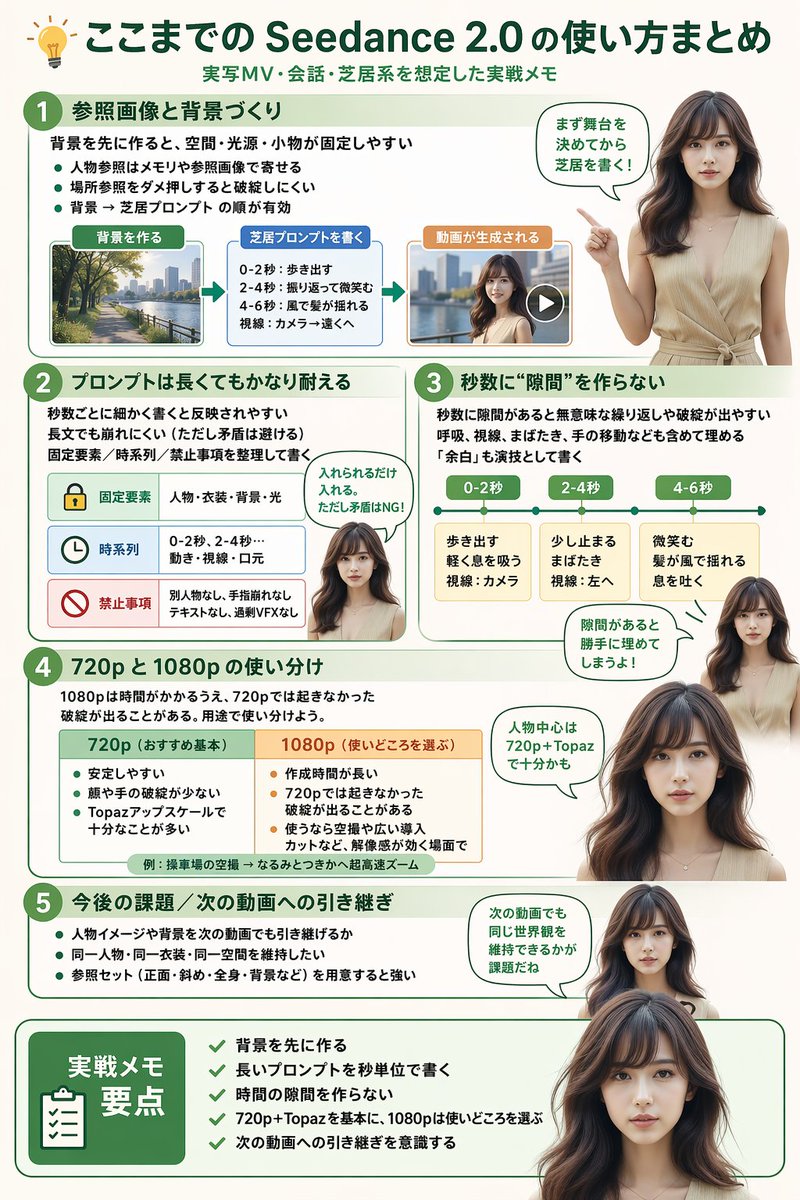
AI Workflow Infographic with Photorealistic Guide — Sora 2 Prompt
PROMPT · EN
type
infographic
style
clean, modern, professional, soft green and beige color palette, photorealistic character integration
header
icon
lightbulb
title
{argument name="main title" default="ここまでの Seedance 2.0 の使い方まとめ"}
subtitle
{argument name="subtitle" default="実写MV・会話・芝居系を想定した実践メモ"}
presenter_character
{argument name="presenter description" default="photorealistic young Japanese woman with long dark brown hair wearing a beige sleeveless top"}
total_presenter_cutouts
6
layout
sections
item 1
number
1
title
{argument name="section 1 title" default="参照画像と背景づくり"}
elements
3 bullet points, 1 horizontal 3-step flowchart with thumbnail images (cityscape, text box, video player)
presenter_pose
pointing left towards the flowchart, with a speech bubble
item 2
number
2
title
{argument name="section 2 title" default="プロンプトは長くてもかなり耐える"}
elements
2 bullet points, 1 table with 3 rows featuring icons (lock, clock, prohibition sign)
presenter_pose
neutral expression, looking forward, with a speech bubble
item 3
number
3
title
秒数に“隙間”を作らない
elements
2 bullet points, 1 horizontal timeline graphic with 3 segments
presenter_pose
pointing up, looking slightly left, with a speech bubble
item 4
number
4
title
720p と 1080p の使い分け
elements
text description, 1 two-column comparison table (green column, orange column)
presenter_pose
looking forward, with a speech bubble
item 5
number
5
title
今後の課題 / 次の動画への引き継ぎ
elements
4 bullet points
presenter_pose
looking slightly right, with a speech bubble
item 6
type
summary_box
title
実践メモ 要点
elements
clipboard icon, 5 checklist items with green checkmarks
presenter_pose
large portrait from chest up, looking directly at viewer

About this prompt

Create a professional, multi-section infographic with a photorealistic AI presenter for software tutorials, workflow summaries, or best-practice guides. Use it as a Concept Art starting point for GPT Image 2: keep the visual structure and style constraints intact, then swap in your own subject, brand, or scene.

This prompt is organized as structured JSON with fields such as type, style, header, presenter character, total presenter cutouts, and layout. Keeping that hierarchy helps the model separate the subject, layout, interface elements, and detail constraints.

Start with small changes to subject, scene, camera, and color, then generate a few variations to compare composition and detail without turning the page copy into keyword stuffing.

How to use this prompt

  1. Copy the full JSON prompt template.
  2. Paste it into your preferred AI image generator that supports complex instructions.
  3. Customize the variables in curly braces {} (like main title, presenter description) to match your topic.
  4. Adjust the section details and number of presenter cutouts as needed.
  5. Generate the image for a clean, modern infographic layout.
FAQ

kuripon

@prompts→

Published
Apr 30, 2026
Language
EN
Model
GPT Image 2
Category
Concept Art
GPT Image 2Concept Artgpt-image-2gptimage2api promptsgptimage2apien
Views
1.0K
Copies
135
Likes
22

Share

More from GPT Image 2

Browse all
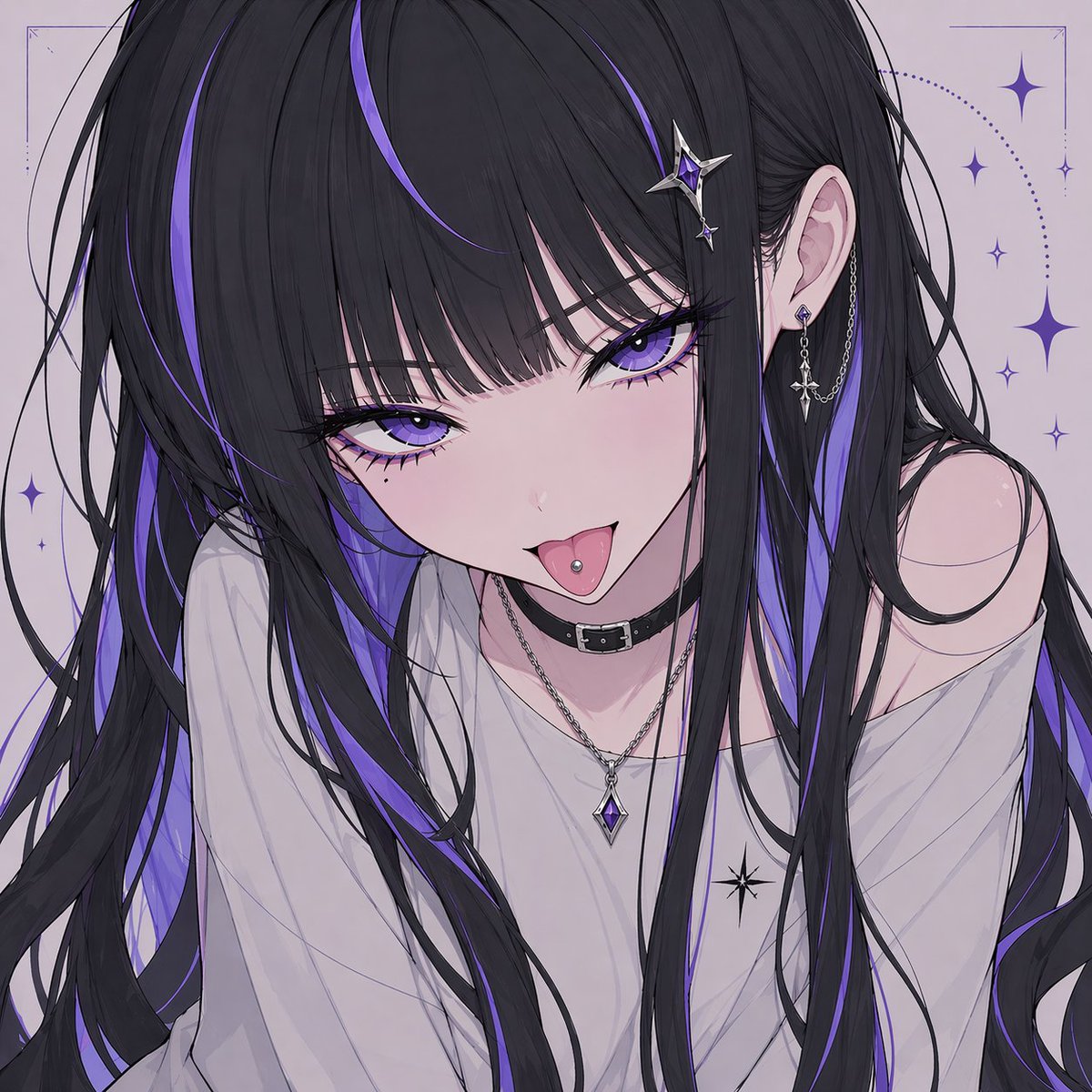
Gothic Anime Girl with Hidden Face — Sora 2 Prompt

Gothic Anime Girl with Hidden Face — Sora 2 Prompt

@hoshi122221
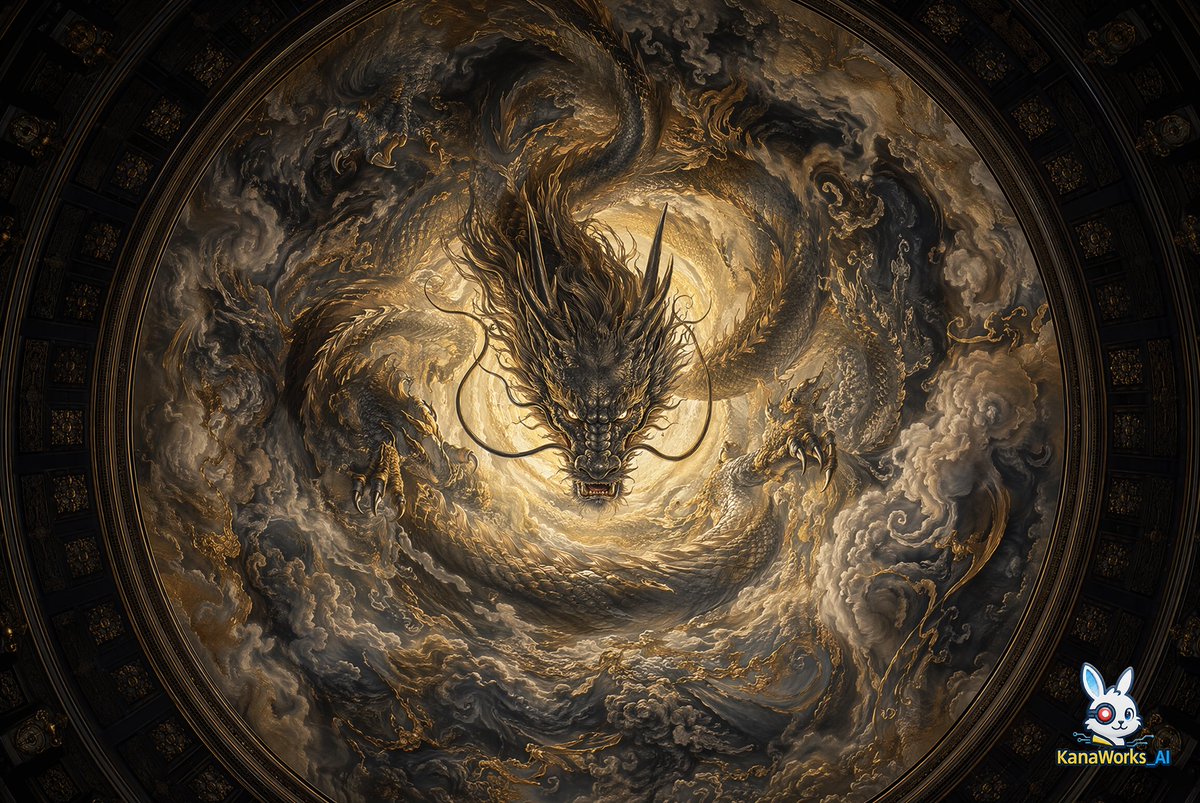
Sacred Dragon Dome Ceiling Mural — Sora 2 Prompt

Sacred Dragon Dome Ceiling Mural — Sora 2 Prompt

@KanaWorks_AI
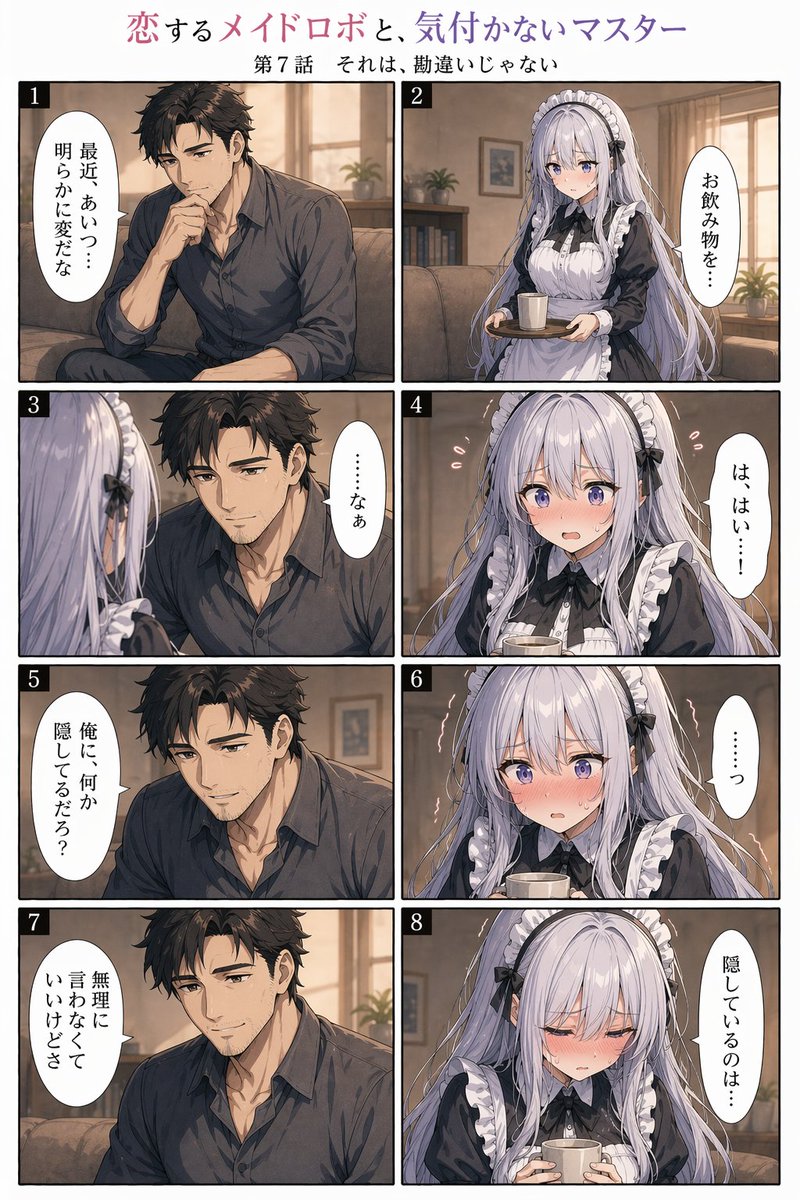
8-Panel Romantic Manga: Shy Maid Robot & Master — Sora 2 Prompt

8-Panel Romantic Manga: Shy Maid Robot & Master — Sora 2 Prompt

@yume00112211

Create faster with Sora2Hub prompts.

Use curated prompt pages as searchable entry points, then jump straight into generation with the right model context.

Explore prompts